How to Add a Recipient on Zobo Money (2026)
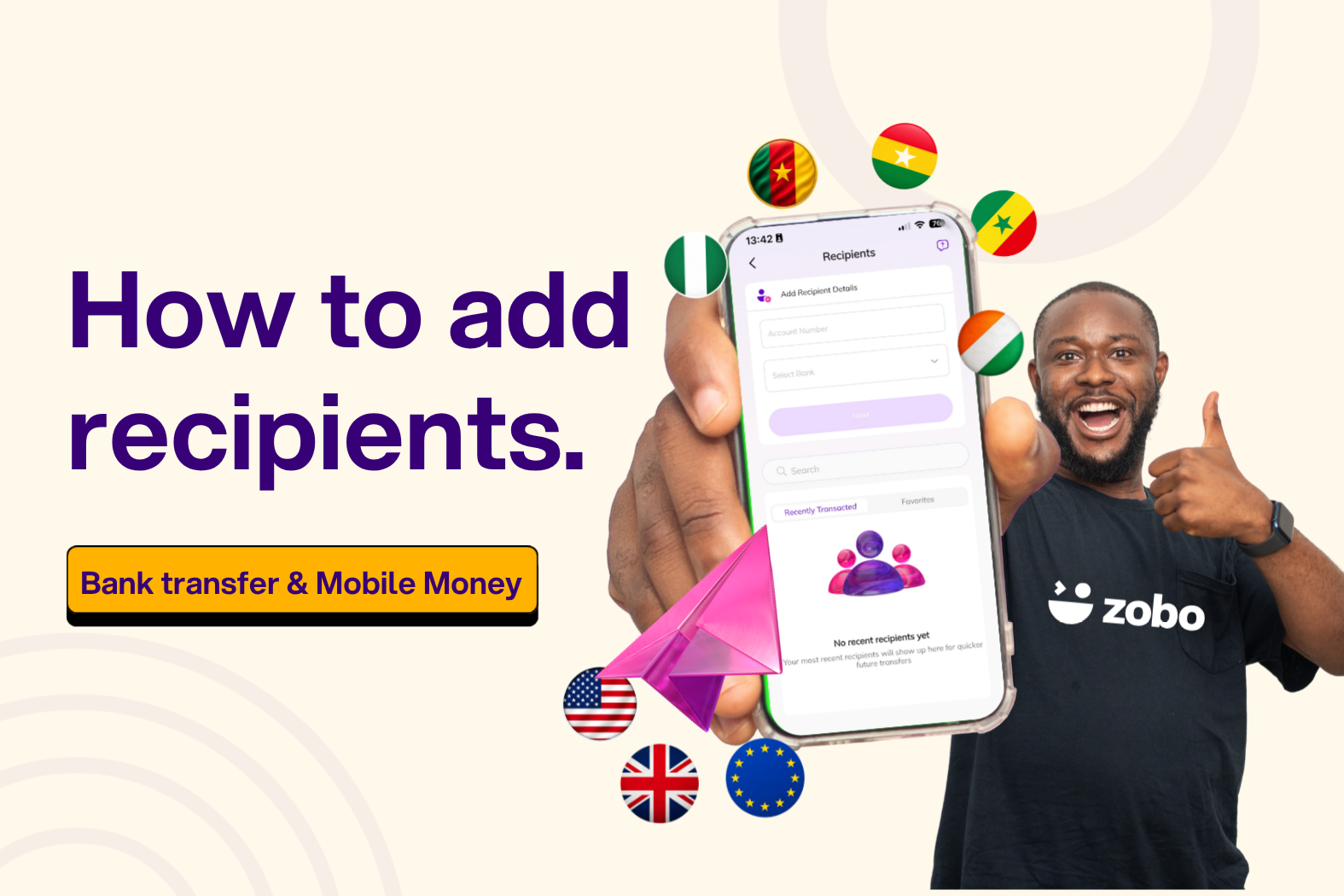
Before you can send money home, you need to add the person you’re sending to. On Zobo Money, adding a recipient (also called a beneficiary) takes just a minute, and you only have to do it once; after that, they’re saved for every future transfer.
There are two ways to receive money from Zobo: bank transfer and mobile money. This guide walks you through both, step by step.
How do I add a recipient on Zobo Money?
To add a recipient on Zobo, go to your profile, tap “Recipients,” and choose a delivery method: bank transfer or mobile money. For a bank transfer, enter the recipient’s account number, select their bank, add their name, and save. For mobile money, select the recipient’s country, enter their phone number, choose their mobile money provider, add their name, and save. Once saved, you can send them money right away.
How to add a recipient by bank transfer
Bank transfer works across all of Zobo’s destinations: Nigeria, Ghana, Cameroon, Ivory Coast, and Senegal. Here’s how to set it up:
- Go to your profile and tap Recipients.
- Choose Bank transfer as the delivery method.
- Enter the account number of the person you’re sending to.
- Select their bank from the list.
- Add the recipient’s name exactly as it appears on their bank account.
- Save.
That’s it, your recipient is saved, and you can send money home to them straight away. If you haven’t set up a payment method yet, make sure you’ve added a debit card to Zobo first, so you’re ready to send.
How to add a recipient by mobile money
Mobile money is one of the most popular ways to receive funds across Ghana and the Francophone markets, so Zobo supports it directly. Here’s how to add a mobile money recipient:
- Go to your profile and tap Recipients.
- Select Mobile Money as the delivery method.
- Tap Add recipient.
- Choose the recipient’s country.
- Enter their phone number: this is the number linked to their mobile money wallet.
- Select their mobile money provider, such as MTN Mobile Money, AirtelTigo Money, or Vodafone Cash.
- Add the recipient’s name.
- Save.
Your recipient is now ready, and the money sent to them lands directly in their mobile money wallet.
Frequently asked questions
- Can I add more than one recipient on Zobo Money? Yes. You can save as many recipients as you like, each with their own delivery method, and pick whoever you’re sending to at checkout.
- Do I need to add a recipient before every transfer? No. Once a recipient is saved, they stay in your list for all future transfers. You only add them once.
- Can I edit or remove a saved recipient? Yes. Open your Recipients list in your profile to update a recipient’s details or remove one you no longer use.
- What information do I need to add a recipient? For a bank transfer, you need the recipient’s account number, bank, and name. For mobile money, you need their country, phone number, mobile money provider, and name.
- Will the recipient’s name need to match exactly? Yes — always enter the name exactly as it appears on the recipient’s bank account or mobile money wallet to avoid delays.
Ready to send money home?
Once your recipient is saved, sending is the easy part. Open Zobo, choose who you’re sending to, and the full amount reaches them — no transaction fees, with a competitive rate you can see before you confirm.